

In many sales and legal teams, the moment a deal closes is just the beginning of a long, manual process. Drafting the contract, routing it for approval, sending it for signature, and finally filing the signed PDF can take days and involve multiple tools. By combining n8n’s workflow orchestration with TurboDocx’s document generation and e‑signature capabilities, you can turn this fragmented process into a single, repeatable pipeline. The result is faster turnaround, fewer errors, and a clear audit trail. This article explains how to set up that pipeline, adapt it to your own data sources, and extend it with AI or other services.
Context and practical value
The source describes a complete n8n workflow that pulls contracts from an Excel table, generates a Word document with TurboDocx, routes it for Slack approval, sends it for e‑signature, and files the signed PDF in SharePoint. It includes step‑by‑step instructions, troubleshooting tips, and suggestions for extending the flow with AI or other data sources.
This article distills the source into a concise, modular guide, highlights key integration points, and expands on how to adapt the workflow to other data sources and advanced scenarios. It also adds a practical checklist, common pitfalls, and a community discussion prompt to encourage knowledge sharing.
Key takeaways
- Use n8n to orchestrate every step of the contract lifecycle, from data extraction to filing.
- TurboDocx handles Word‑template rendering and legally binding e‑signatures, eliminating manual PDF edits.
- Slack can serve as the approval gate, keeping the workflow in the team’s existing communication channel.
- The same pattern works with any data source that n8n can read, such as Salesforce, Airtable, or Google Sheets.
- You can extend the workflow with AI to auto‑populate variable sections or route contracts based on value.
- A public HTTPS endpoint is required for TurboDocx webhooks; n8n Cloud or a tunnel solves this for self‑hosted instances.
- The workflow provides an audit trail: every status change is logged in the source table and Slack messages are archived.
Why Automate the Contract Loop?
When a deal is closed, the contract is often the first document that needs to be drafted, reviewed, signed, and stored. Manual handling introduces delays, version drift, and compliance risks. Automating the loop ensures that every contract follows the same path, approvals are recorded, and signed PDFs are filed in a predictable location.
Core Components of the Workflow
- Data Source – Excel, Salesforce, Airtable, etc., holds the contract queue and status. 2. n8n – Orchestrates triggers, loops, branching, and data movement. 3. TurboDocx – Generates Word contracts from a template and sends them for e‑signature. 4. Slack – Provides an approval gate with interactive buttons. 5. SharePoint – Stores the final signed PDF in a shared folder.
Step‑by‑Step Build
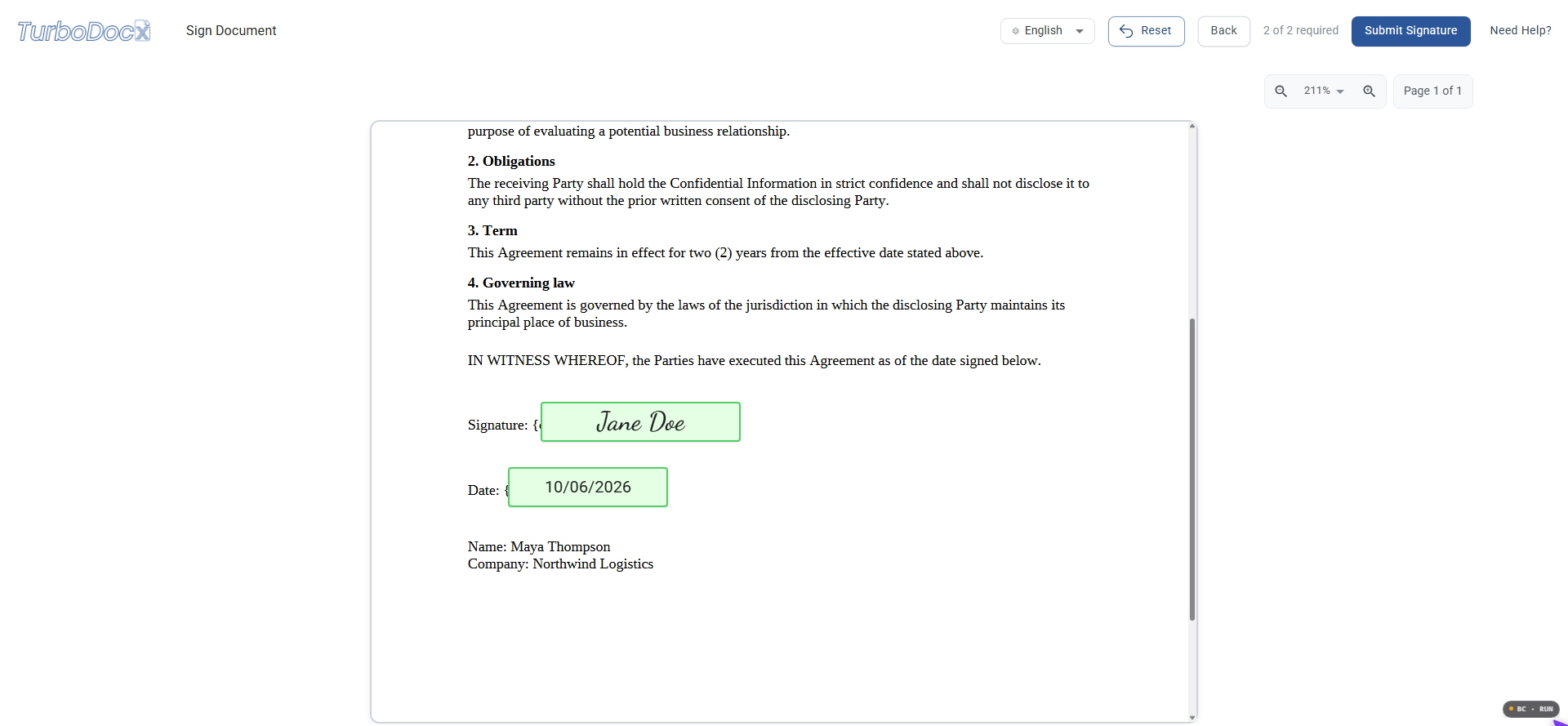
- Schedule Trigger – Runs every 15 minutes (or on a CRM event). 2. Lookup Contracts – Reads rows marked "Ready to send". 3. Generate Contract – TurboDocx renders the template with variables from the row. 4. Slack Approval – Sends a message with "Approve & send" and "Reject" buttons; waits for a response. 5. Send for Signature – On approval, TurboDocx sends the PDF to the signer. 6. Signature Trigger – TurboDocx webhook fires when the signer completes the form. 7. File PDF – n8n uploads the signed PDF to SharePoint and updates the row to "Signed". 8. Notify Team – Slack posts a success message.
Adapting to Other Data Sources
Replace the Excel node with any n8n node that can read and update records: Salesforce, HubSpot, Airtable, Google Sheets, Postgres, or a custom API. The mapping of fields remains the same; only the node configuration changes. Similarly, you can swap Slack for Microsoft Teams or any other messaging platform supported by n8n.
Extending the Workflow
- AI‑Powered Drafting – Insert an OpenAI or Anthropic node before generation to auto‑fill variable sections from call notes. - Dynamic Routing – Use a value threshold to send high‑value contracts to a different approval channel. - Multiple Signers – Add additional signature steps for co‑signers or legal reviews. - Redlines – For contracts that need negotiation, route back to the template for editing before re‑marking "Ready to send".
Common Pitfalls and Fixes
- Webhook URL – Self‑hosted n8n needs a public HTTPS endpoint; use a tunnel or set WEBHOOK_URL. - Status Text – The lookup is case‑sensitive; ensure "Ready to send" matches exactly. - Anchor Names – Signature anchors must be spelled exactly as {client_sig} and {client_date}. - Slack App Permissions – The bot must be added to the approval channel and have message‑send and interactive‑components rights.
Conclusion
By integrating n8n with TurboDocx, Slack, and SharePoint, you can close the gap between contract creation and final filing. The workflow is fully auditable, reduces manual touchpoints, and can be tailored to any organization’s tech stack.
Practical next steps
- Set up an n8n instance (cloud or self‑hosted) and install the TurboDocx node. Create a contract queue in your chosen data source and define a status column. Build the n8n workflow following the step‑by‑step guide, ensuring each node is correctly mapped. Test the entire flow with a single contract: generate, approve, sign, and verify the PDF lands in SharePoint. Deploy the workflow and monitor Slack for approval messages and completion notifications.
- Open the original source and verify its prerequisites, workflow, and current product behavior before adopting it.
- Test the approach on a small non-production example and record the inputs, output quality, runtime, and failure modes.
Limits and verification
- The example workflow handles a single signer and a linear approval path; more complex scenarios require additional nodes or custom logic. TurboDocx free tier limits document generations and signatures per month, which may be insufficient for high‑volume environments. The workflow relies on public HTTPS for webhooks; self‑hosted setups need proper tunneling or reverse proxy configuration.
FAQ
Can I use this workflow with Salesforce instead of Excel?
Yes. Replace the Excel node with the Salesforce node, map the same fields, and the rest of the workflow remains unchanged.
What if I need multiple signers?
Add additional TurboDocx "Send Agreement for E‑Signature" nodes in sequence, each targeting a different signer. Update the status column accordingly.
Is the signed PDF legally binding?
TurboDocx uses a legally recognized e‑signature process that complies with major e‑signature regulations, but you should verify local legal requirements.